Wi-Fi connection issues can be a source of frustration for many users, particularly in an age where seamless internet access is essential for both personal and professional activities. The complexity of Wi-Fi technology, combined with the myriad of devices that connect to these networks, can lead to a variety of problems. Common symptoms of Wi-Fi issues include slow internet speeds, intermittent connectivity, or the inability to connect to the network altogether.
Understanding the underlying causes of these problems is crucial for effective troubleshooting. Several factors can contribute to Wi-Fi connection issues. These include hardware malfunctions, software glitches, and environmental factors such as interference from other electronic devices or physical obstructions.
For instance, a router that is outdated or improperly configured may not provide adequate coverage or speed. Similarly, a device that has not been updated may struggle to maintain a stable connection. By identifying the specific nature of the problem, users can take targeted steps to resolve their Wi-Fi connectivity issues.
Checking Wi-Fi Network Settings
Before diving into more complex troubleshooting methods, it is essential to check the basic Wi-Fi network settings on your device. This includes verifying that Wi-Fi is enabled on your iPhone and ensuring that you are attempting to connect to the correct network. Sometimes, users may inadvertently try to connect to a nearby network with a similar name, leading to confusion and connectivity issues.
Accessing the Wi-Fi settings on your iPhone is straightforward; simply navigate to the Settings app, tap on Wi-Fi, and ensure that the toggle is switched on. In addition to confirming that you are connected to the right network, it is also important to check for any restrictions or configurations that may be affecting your connection. For example, if you have set up a VPN or have specific security settings in place, these could interfere with your ability to connect to the internet.
Furthermore, ensuring that your iPhone is within range of the router can significantly impact connectivity. If you are too far away or if there are physical barriers such as walls or furniture obstructing the signal, you may experience connectivity issues.
Restarting the iPhone and Wi-Fi Router
One of the simplest yet most effective troubleshooting steps for resolving Wi-Fi connection issues is restarting both your iPhone and your Wi-Fi router. This process can clear temporary glitches and refresh network connections. To restart your iPhone, press and hold the power button until the slider appears, then slide it to power off.
After waiting a few moments, turn it back on by pressing the power button again. This simple action can often resolve minor software issues that may be affecting your device’s ability to connect to Wi-Fi. Similarly, restarting your Wi-Fi router can help restore connectivity.
Unplugging the router from its power source for about 30 seconds allows it to reset and clear any temporary issues it may be experiencing. Once you plug it back in and allow it to fully reboot, which may take a few minutes, try reconnecting your iPhone to the network. This process can often resolve issues related to IP address conflicts or other network-related problems that may have arisen during prolonged use.
Updating iOS Software
| Device | iOS Version | Release Date |
|---|---|---|
| iPhone 12 | 14.5 | April 26, 2021 |
| iPad Pro | 14.5 | April 26, 2021 |
| iPod Touch (7th gen) | 14.5 | April 26, 2021 |
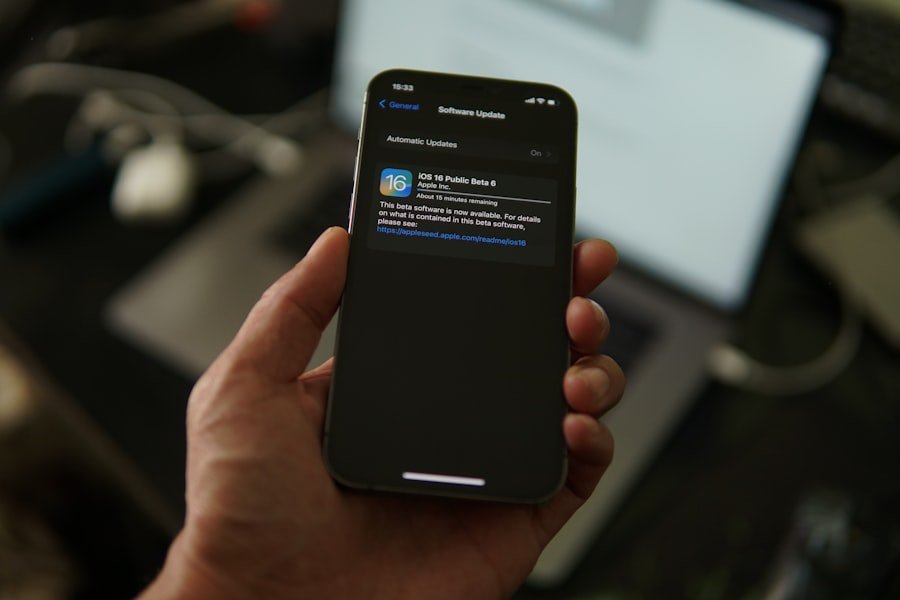
Keeping your iPhone’s operating system up to date is crucial for maintaining optimal performance and security. Apple regularly releases updates that not only introduce new features but also address bugs and improve overall system stability. If you are experiencing persistent Wi-Fi connection issues, it may be worth checking if there is an available iOS update.
To do this, navigate to Settings > General > Software Update. If an update is available, follow the prompts to download and install it. Updating your iOS software can resolve compatibility issues between your device and the router or other network equipment.
For instance, older versions of iOS may not support newer Wi-Fi standards or security protocols implemented by modern routers. By ensuring that your device runs the latest version of iOS, you can enhance its ability to connect reliably to various networks and improve overall performance.
Forgetting and Reconnecting to Wi-Fi Network
If you are still experiencing issues after checking settings and restarting devices, another effective troubleshooting step is to forget and then reconnect to the Wi-Fi network. This process involves removing the saved network information from your iPhone and re-establishing a fresh connection. To forget a network, go to Settings > Wi-Fi, tap on the information icon (i) next to the network name, and select “Forget This Network.” After doing so, wait a moment before attempting to reconnect by selecting the network from the list and entering the password again.
Forgetting and reconnecting can help resolve issues related to incorrect passwords or outdated security settings that may have changed since you last connected. It also allows your device to obtain a new IP address from the router, which can sometimes resolve conflicts that prevent successful connections. This method is particularly useful if multiple devices are connected to the same network and one device is experiencing issues while others are not.
Resetting Network Settings
If previous troubleshooting steps have not resolved your Wi-Fi connection issues, resetting your network settings may be necessary. This action will erase all saved Wi-Fi networks and passwords, as well as any VPN or APN settings you have configured. To reset your network settings on an iPhone, navigate to Settings > General > Transfer or Reset iPhone > Reset > Reset Network Settings.
After confirming your choice, your device will restart. Resetting network settings can be particularly effective in resolving persistent connectivity problems caused by misconfigured settings or corrupted data. After performing this reset, you will need to reconnect to your Wi-Fi networks by entering passwords again.
While this process may seem inconvenient, it often clears up underlying issues that other methods cannot address, leading to a more stable connection moving forward.
Checking for Interference
Environmental factors can significantly impact Wi-Fi connectivity, making it essential to consider potential sources of interference when troubleshooting connection issues. Common culprits include other electronic devices such as microwaves, cordless phones, and Bluetooth devices that operate on similar frequencies as Wi-Fi networks. Additionally, physical barriers like walls and furniture can weaken signals, especially if they are made of dense materials like concrete or metal.
To mitigate interference, consider relocating your router to a more central location within your home or office space. Elevating the router off the floor and placing it in an open area can enhance signal strength and coverage. If interference from other devices is suspected, try turning off nearby electronics temporarily to see if connectivity improves.
In some cases, changing the channel on which your router operates can also help reduce interference from neighboring networks.
Seeking Professional Help
If all else fails and you continue to experience persistent Wi-Fi connection issues despite trying various troubleshooting methods, it may be time to seek professional help. This could involve contacting your internet service provider (ISP) for assistance or consulting with a technician who specializes in networking issues. ISPs often have tools at their disposal to diagnose problems with their service or equipment that may not be apparent from a user’s perspective.
A professional technician can conduct a thorough assessment of both your hardware and network configuration. They can identify underlying issues such as faulty wiring, outdated equipment, or even problems with external factors like service outages in your area. In some cases, they may recommend upgrading your router or modem if they determine that your current equipment is inadequate for your internet needs.
Seeking expert assistance can save time and frustration while ensuring that you achieve a reliable and efficient Wi-Fi connection in your home or office environment.
FAQs
What are the common reasons for Wi-Fi not connecting on iPhone?
Some common reasons for Wi-Fi not connecting on iPhone include network issues, incorrect Wi-Fi settings, software glitches, and hardware problems.
How can I troubleshoot Wi-Fi connection issues on my iPhone?
You can troubleshoot Wi-Fi connection issues on your iPhone by restarting your device, resetting network settings, forgetting and rejoining the Wi-Fi network, updating your iPhone’s software, and checking for hardware issues.
What should I do if my iPhone is not connecting to a Wi-Fi network?
If your iPhone is not connecting to a Wi-Fi network, you can try restarting your device, resetting network settings, forgetting and rejoining the Wi-Fi network, updating your iPhone’s software, and checking for hardware issues.
How do I reset network settings on my iPhone?
To reset network settings on your iPhone, go to Settings > General > Reset > Reset Network Settings. Keep in mind that this will reset all network settings, including Wi-Fi passwords and VPN settings.
What should I do if none of the troubleshooting steps work?
If none of the troubleshooting steps work, you may need to contact Apple Support or visit an Apple Store for further assistance. It’s possible that there may be a hardware issue with your iPhone that needs to be addressed.